
OPERATIONS
Training & Resources

Alpha Truck Training Guides
PDF Guides and Dispatch Training Videos.
Back to Basics
Short, practical tips and reminders from our VP of Ops to help ensure consistency and accuracy in our daily processes.
Operational Procedures
Workflow for daily operations.
Service Resources
Traffic type explanations and types of customers.
Alpha Truck Training
PROD
TEST

- How to Bring up a Down Printer
- How to Create an Account Code (Shipper or CNNEE)
- How to Create a Quote with Zipcodes Only
- How to Create a Quote with Shipper and CNEE Information
- How to Create a Shipment
- How to Edit a Shipment
- How to Find a Shipment without a PRO
- How to Run a Missing BOL-Image Report
- How to Run a Missing DR Report
- How to Update PCS and Weight
- ACORDEX Dispatch Communications
- How to Add an Additional Leg on a Dispatch #
- How to Approve-Dispatch a Quote#
- How to Arrive a Dispatch-Driver
- How to Arrive an Inbound Manifest
- How to Arrive a Local Driver
- How to Assign a Pickup to a Driver
- How to Create a Linehaul Dispatch
- How to Create a TCON Manifest
- How to Create an Outbound Manifest
- How to Enter POD-Delivery Information
- How to Send Deliveries to Driver via RCON
- How to View Incoming Driver-Dispatch-Manifests
Managerial How-Tos (Managers Only)
Short, Simple Reminders
Back to Basics
Practical tips and reminders from our VP of Ops to help ensure consistency and accuracy in our daily processes.
If you have any questions on this please reach out to your immediate Manager or to Scott Favela for clarification.
AIT 400000XXXX Shipments
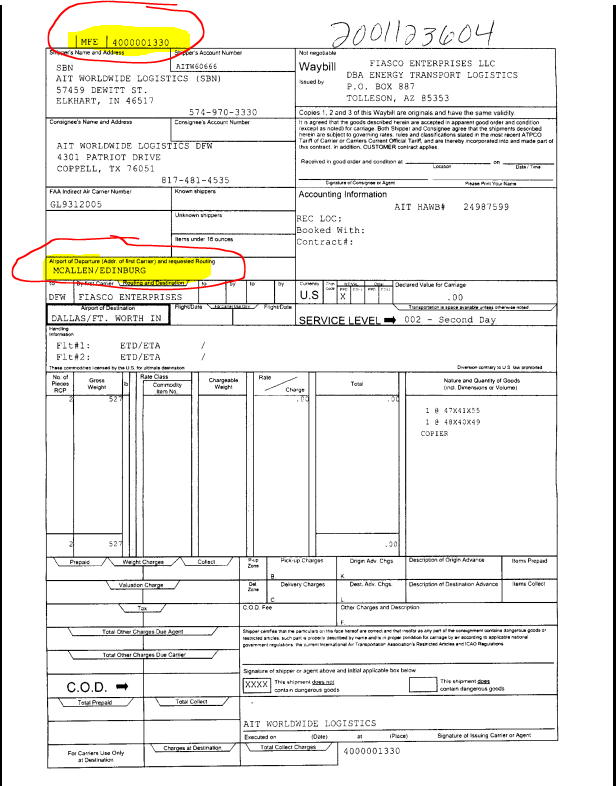
Your terminal may receive a dropped AIT shipment by an outside carrier with the below documentation. The AIT Bill will have a 400000xxxx number on the top left of the BOL along with the airport of DEPARTURE (both highlighted below). This number is our PRO number that has been specifically assigned to AIT.
- When we receive a shipment from outside carrier along with the AIT BOL.
- We first must check our Terminal EDI Board to confirm if we have pulled this shipment from the EDI Board (look for the specific 400000xxxx. This will eliminate the need to do a manual data entry
- If you do not find this shipment on your Terminal EDI Board the next step is to check the EDI Board but change the terminal to BYD – see below
- You may find the shipment in the BYD EDI Board – See below = If you do find it on this board, please pull/accept the shipment, Change the Traffic Type to A (ATA) then change the shipping location to your Energy Terminal.
CFS Storage Charge Process
CFS Teams, recently our Accounting Team has been doing way too many CFS Storage adjustments when we do not enter the POD date properly.
- CFS Storage begins AUTOMATICALLY after the Last Free Day (LFD) set on the CFS bill. If our CFS Team has not entered a POD by that date the system will automatically begin to accrue storage every day until the POD is entered. This will cause a balance due between what the customer paid to release the CFS freight and any accrued storage days charged.
- This is causing our Billing Team to expend unnecessary extra resources in reaching out to Terminals and Customers requesting payment of storage charges that in the end were not valid due to the fact the freight had been delivered but the POD had not been entered on or before the LFD.
- CFS Teams must be disciplined in following the proper process of all CFS release requirements, delivery instructions, full payment and POD of the CFS bill timely and without delay. We must collect ALL CHARGES prior to releasing the freight from the customer via Pay Cargo, Cargo Sprint, Credit Card or physically receiving a Company Check (we do not accept a scanned copy of a check as proof of payment nor Cash).
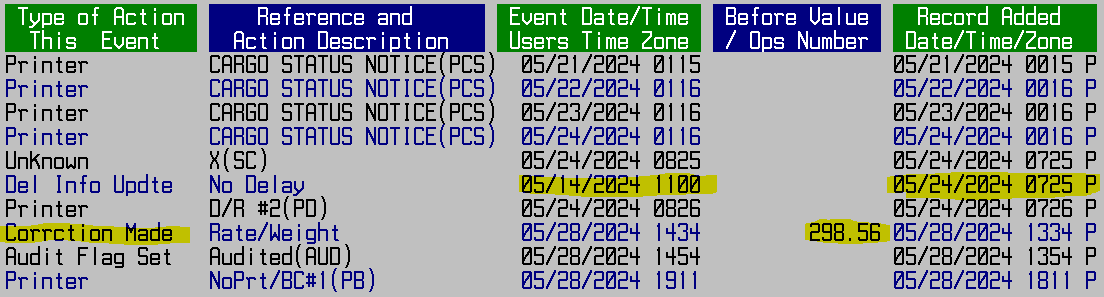
Below is an example of what we have been experiencing recently. The POD is being entered multiple days after the actual delivery date. On the below example because of this process the Pro accrued 10 days of storage that were not valid and had to be adjusted. All this extra work could have been avoided had we entered the POD on the actual day.
- Actual POD Date 05-14-2024
- POD was entered 05-24-2024
- Accrued Storage Charges $298.56 – Adjusted off after Billing team and CFS Terminal researched and determined cause (added work unnecessarily)
CFS Masterbill/ 7512 Bond Reference Numbers
CFS Teams, our CFS standard data entry practice is that we enter 4 data point reference fields: MB, HB and Shipper Reference# along with the 7512 number field with bond information. Any additional shipment information is preferred and needed. If I missed anyone please forward this information to them as it is important to remain compliant in our CFS services.
A) On Air Freight CFS shipments the Master Airway Bill Number (MAWB) and 7512 Bond numbers are the same as they are moving under a TACM document so we must populate that number in those fields.
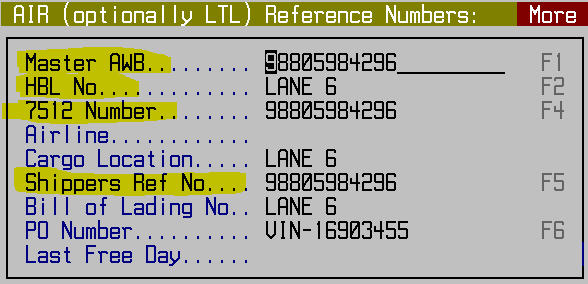
B) There may be Air Freight shipments that an IT Bond (61) was opened to move to our CFS facility. Make sure the MAWB and 7512 are in the correct data fields.

C) On Ocean CFS shipments the Ocean Master Bill of Lading Number goes in the MB section and the IT/TE number in the 7512 field.
- On all types of CFS shipments you must also enter a House Bill Number and a Shipper Reference Number to complete the needed data points.

Correct Debtor Account Usage
We must be diligent in confirming the debtor account information we are entering during Data Entry or Quote generation is correct.
Entering the incorrect Debtor Account information generates multiple issues notated below.
- Additional work for our Accounting/Billing Team in following up for payment from incorrect debtor along with research and following up with correct debtor once confirmed.
- Customers/Debtors losing confidence in Energy Transport on our customer knowledge by receiving invoices that do not belong to them.
- Increase in payment delay as the correct Debtor will start the payment clock when they receive the correct invoice. This adds to our accounts receivable timeline and exposes our financials in a negative manner.
Please Note: We must enter the correct Company Debtor Location as just opting for the correct company is not enough. In reviewing the PU request with our Debtor list we must apply the correct Company Code.
- Attached is most current Debtor Code list. Please use it for all Quotes and Data Entry by filtering and looking for the applicable customer code.
If you have any questions on what Debtor Account needs to be used please ask questions of the customer, your direct supervisor and/or our accounting teams. There are resources available to help you identify who to enter as the Debtor.
At the Data Entry level you can change the Debtor Account if you notice that it is incorrect when manually entered or if a Quote is turned live. If you see something wrong you have the ability to make the necessary changes. These changes must be completed BEFORE the POD is entered; once POD entered the pro is locked and only Accounting can make changes (We want to avoid this).
Lets do it right the first time.
Customer Account Credit Hold Policy
Energy Team, please note our POLICY for accounts that show an Exceeding Credit, Cash Only or Credit Hold notice on the bottom left when entering debtor/customer account number during the Data Entry process.
We are to STOP from completing the Data Entry and notify the Debtor/Customer that their account has been flagged as ON HOLD and they need to communicate with our Billing Team prior to us picking up the freight.
When you communicate this to the Debtor/Customer please make sure to include our billing team and Ranelle Nimtz on the reply for proper follow up.
It is important that we DO NOT change the debtor/customer to Driver Collect or Prepaid to complete the Data Entry process. We lose all leverage when trying to collect funds for past due shipments if we continue to bypass our Policy. Again, DO NOT change the debtor/customer to Driver Collect or Prepaid. STOP and NOTIFY the customer and include our Billing Team.
Any questions please contact Mark Gutierrez or Ranelle Nimtz.
Customer Information/ Notes Pop Up
Energy Team, please be aware of an Important Customer Information Pop Up that populates when you are in the Body of the bill during data entry process. It is important that you follow the instructions and do SHIFT F8 to uncover the information or note associated with this account.
See below for example’s: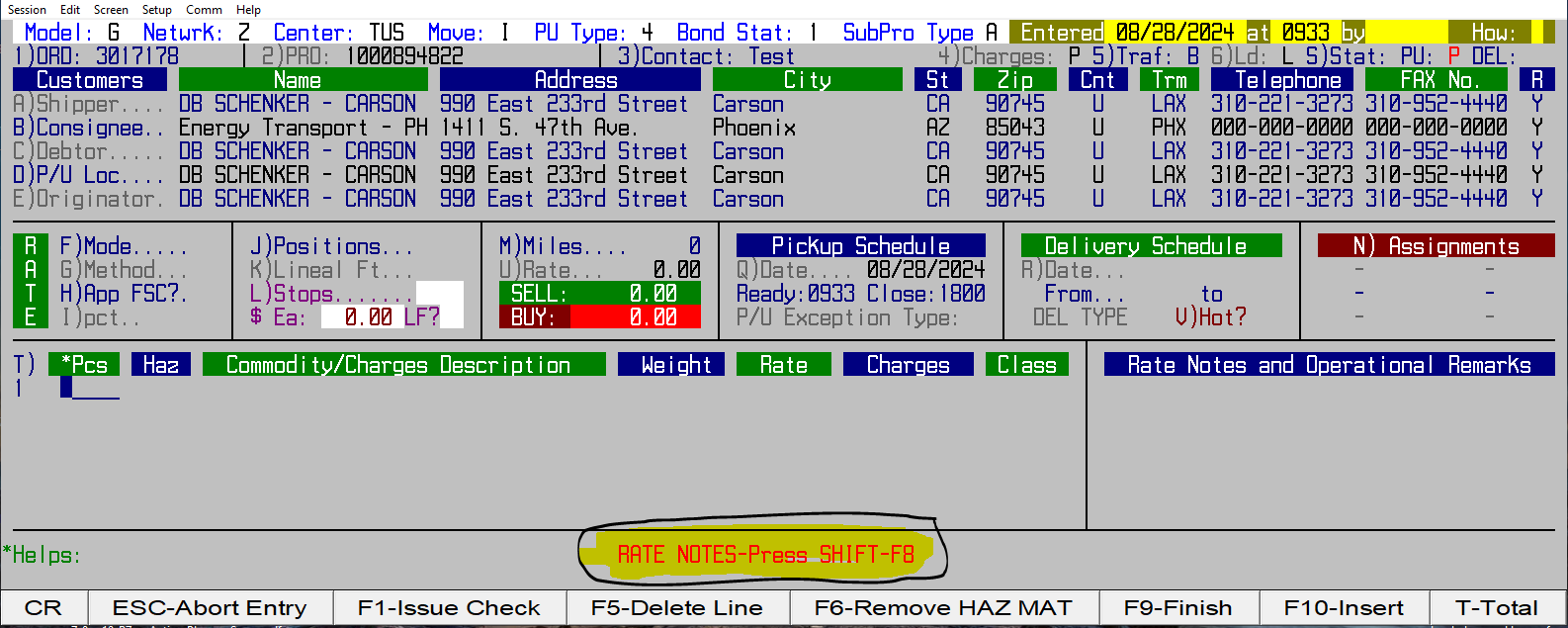
When you do SHIFT F8 the below populates and instructions are to enter the Archive # or SST# from the customers DO as the 1st entry on the Shipper Reference field.
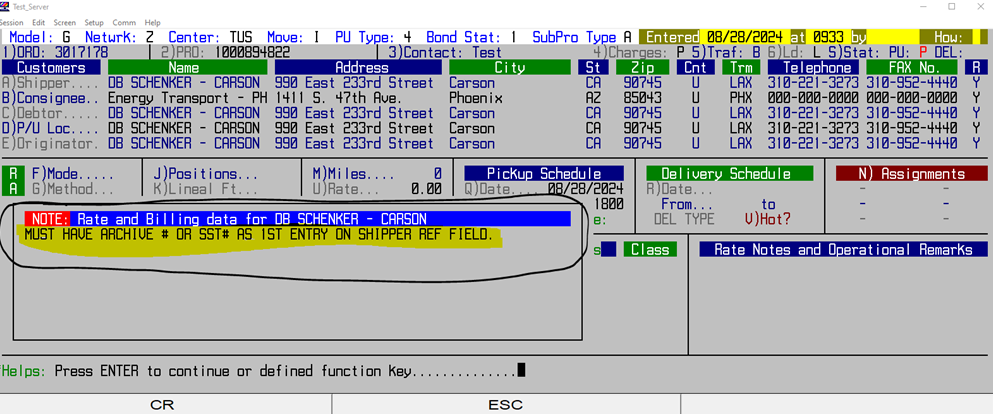
This is important Customer Information based on individual customer requirements and may be different from Customer to Customer but we need to be aware of these and follow this step. This must be done every time this Pop Up comes up to assure we are following the customer requirements.
EDI/EXWORKS Charges
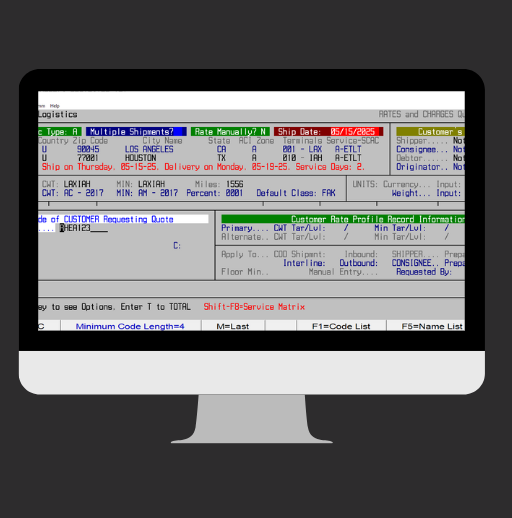
Energy Team, please note when we are accepting shipments for any EDI Customer via EDI or ExWorks and final charges differ from quoted/stated charge WE MUST reach out to the customer to advise them of the difference.
The difference could be they did not add an In Bond, Haz Mat, Airport Recovery or Airport Drop charge or there is a difference between actual and dimensional weights. Whatever the case IF there is a difference in charges from what they are tendering it is our responsibility to contact the customer and advise of the difference.
Our accounting teams have been inundated with disputes when there is a change and we don’t do our due diligence by notifying the customer.
This is crucial in providing our best customer experience and keeping adjustments to a minimum.
Freight Broker Tenders/ Loads
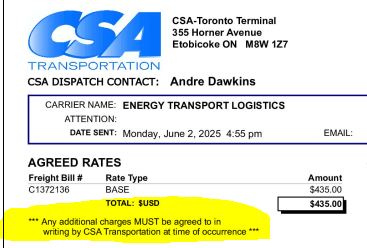
Teams, please note the below when working with Freight Brokers as customers. They offer their freight based on FLAT RATE Tenders and if we accept that is all they are going to pay. If you have any accessorial like Wait Time, Lumper Fee, Appointments, etc…..you must communicate back directly with the customer contact to request an updated Rate Confirmation accepting the accessorial being charged.
Without this updated rate confirmation you will not be paid for the accessorial and it adds a delay to our payments as they will dispute it for no timely notification of the accessorial.
The main Freight Broker accounts we work with are DM Trans LLC dba Arrive Logistics / Load Delivered (Capstone Logistics) / CSA Transportation / Online Freight.
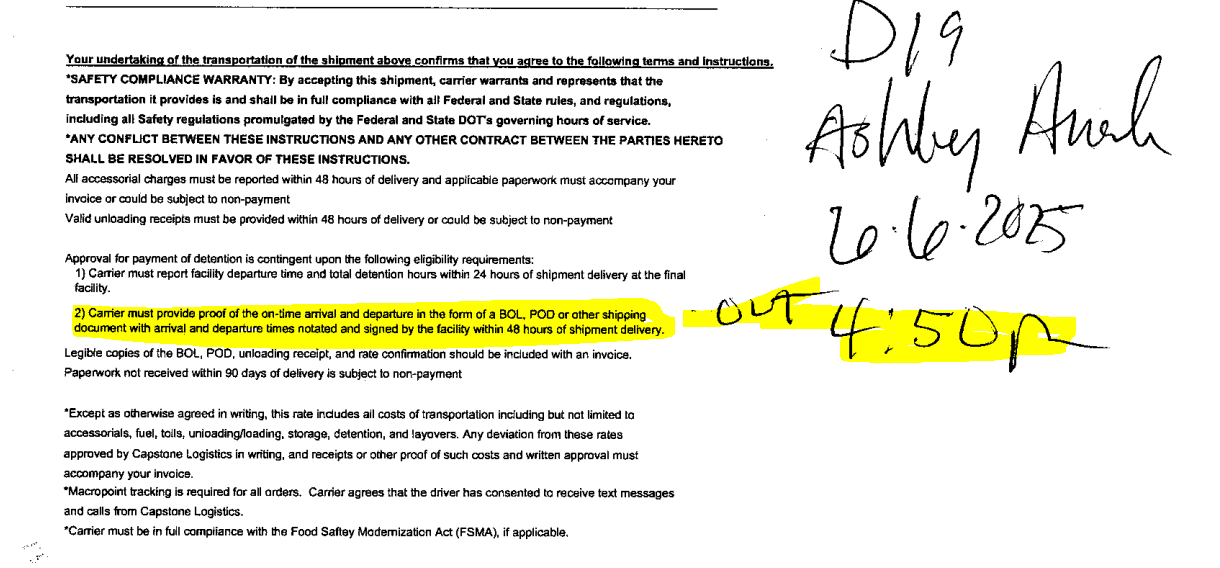
See below examples of rate confirmation notices. On wait time charges, we need clear and legible IN and OUT times on the BOL or DR. See below- we only had an OUT time, but no IN time.
Hazardous Materials Data Entry Steps
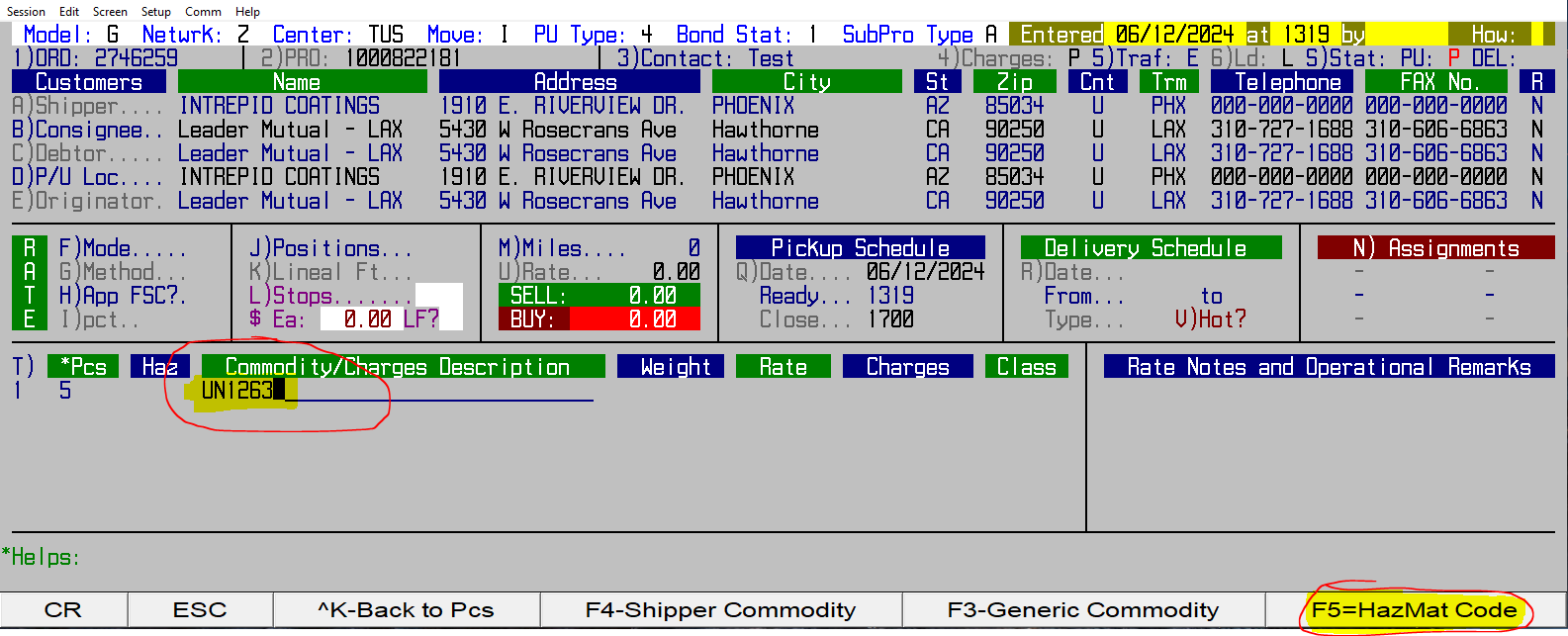
Energy Team, please note that we need to make sure we follow the proper steps when completing a Haz Mat data entry shipment. The 1st step is we need to ensure we are choosing Y to identify this shipment as Hazardous Materials.

Next step is we need to make sure we enter the UN# then choose the F5 in the COMMODITY/CHARGES DESCRIPTION field.
Continue with your data entry process and make sure we enter the EM# (Emergency Response Number) and packaging description. This will AUTOPOPULATE the HZ charges.
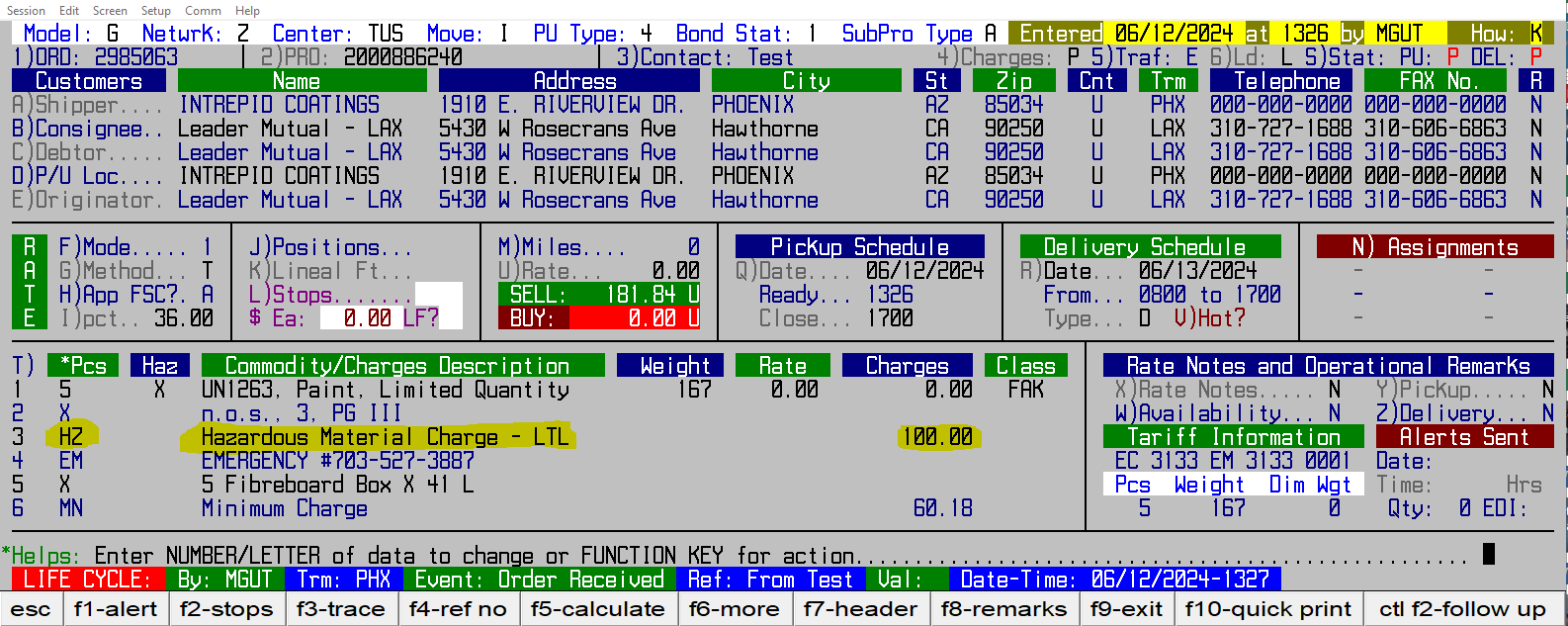
Missing any of these steps will prompt Alpha Truck NOT to AUTO POPULATE the HAZ MAT fee and you will manually need to enter via HX charge code.
Proper Milestone Process Updates
Energy Teams, it is imperative that we follow the proper process for all milestone events. Our customers are using our Online Portal now more than ever and our milestones must be completed in the process and sequence necessary for us to be reporting effectively and accurately. Please make sure to review with your teams and drivers that we need to follow the proper reporting steps using our platform or mobile devices; this is also key for our CSR Agents to have correct and up to date information when reporting back to a customer with questions and eliminate unnecessary phone calls between terminals for needed milestone information.
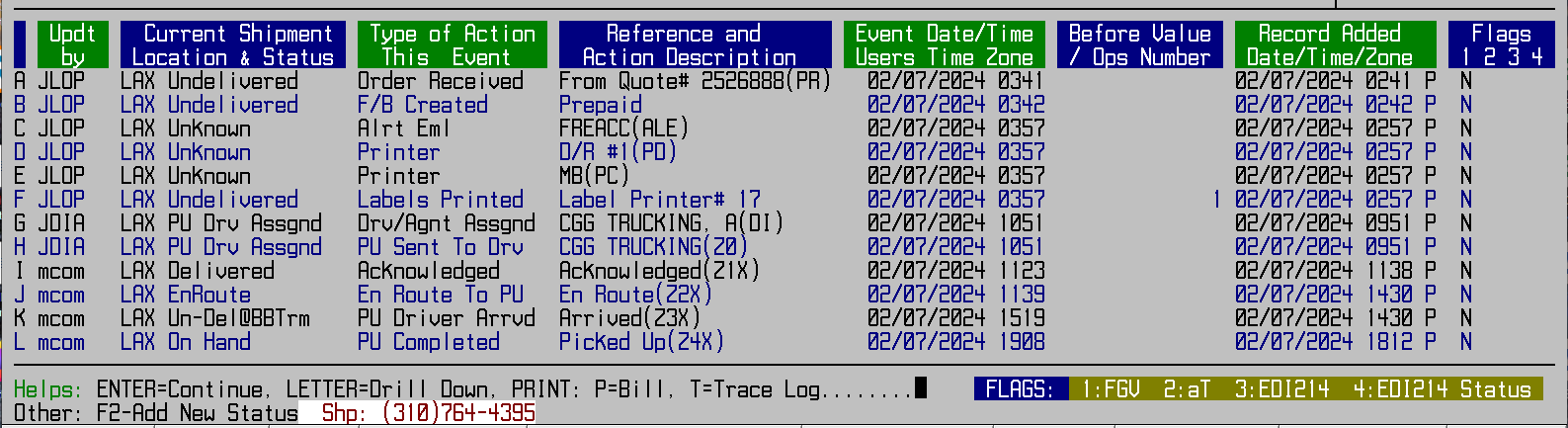
Below is a small example of proper process and steps for assigning and pick up updates from driver. This supports our efforts in reading our platform and having all information on hand without having to reach out to someone for an update.
US Customs Bonds - Bond Data Entry (7512) and IT Prep Fee
Energy Teams, it is imperative that our data entry is done correctly and properly the first time. This email is focusing on Bond Data Entry and Billing Bond & IT Prep Fee (when applicable)
It is important we follow this process to assure we are capturing the correct Bond information on every pro and we are billing all applicable charges based on the usage of our bond. Failing to follow these steps not only jeopardizes our US Customs Bond Compliance but places Energy Transport Logistics in receiving extraordinary fines.
- All Terminals must be aware that the majority of shipments originating from their terminal and destined to a S. Border Terminal (SAN, CXL, OLS, TUS, DGL, ELP, LRD, MFE) are bonded. WE MUST ask a simple question to the customer if they are not providing a copy of the bond or if they are not advising us if shipment is bonded. Ask “Mr/Mrs Customer is this shipment bonded?”. As we are doing the data entry we need to confirm if the shipment is bonded….If not continue with the data entry. If it is bonded we must get a copy of the bond (scan it into the backup) and enter the bond number in the 7512 data field on the pro. Please do not enter 0000000, the word BONDED,123456789, or the bond number with a dash) We must enter one bond per line all in numerical sequence. The freight should not leave your terminal until it’s updated properly.
- When a customer is requesting Energy to prepare and complete the bond document the ORIGIN Terminal must send the request to our Bonds team along with the PRO # assigned for the shipment so that the bond and fees are applied properly.
- It is important that we read this email and process it accordingly…Every bond that starts with an 802 (example IT#802880024) should have the IT Prep Fee added to the pro as our Bond Team has generated this bond for the customer. Each pro should have 2 separate fees: $80.00 IT Prep Fee and $50.00 Bond Fee (per each bond).
- If you have any questions regarding this matter, please do not hesitate to contact our Bonds Team or myself for clarification and support.
Our $50.00 bond fee can turn into a $50,000 Bond Compliance fine for not following our Basic Bond Process. Lets get back to BASICS and FOLLOW THE PROCESS.
Operational Procedures
Easy to Use Checklists

Operations Workflow
Menu Path Cheat Sheet
Service Resources

Courier Resources
Fuel Surcharge
Linehaul Schedule
Our LH schedules are post on our website. Here is the direct link to view our LH schedules.
Rates
Please see the Sales page for our most current ratebook.

Service Level Explanations

Types of Customers
Let’s keep things running smoothly, together.
Welcome to our Operations Team hub- our go-to space for understanding who we are, what we do, and how we can support each other. From how-to walkthroughs to SOPs, we’ve compiled everything you need to navigate your work with confidence.
Terminals across the US & MEXICO

Testimonials
Our Customers
“Fantastic company. They Brought my freight to Phoenix quickly and safely.”
Happy PHX Customer
“Very Polite and a good company.”
⭐⭐⭐⭐⭐
Satisfied DFW Customer
FAQ
What is our Company phone number?
(844) 737 7447
What is our Firms Code?
Visit here.